
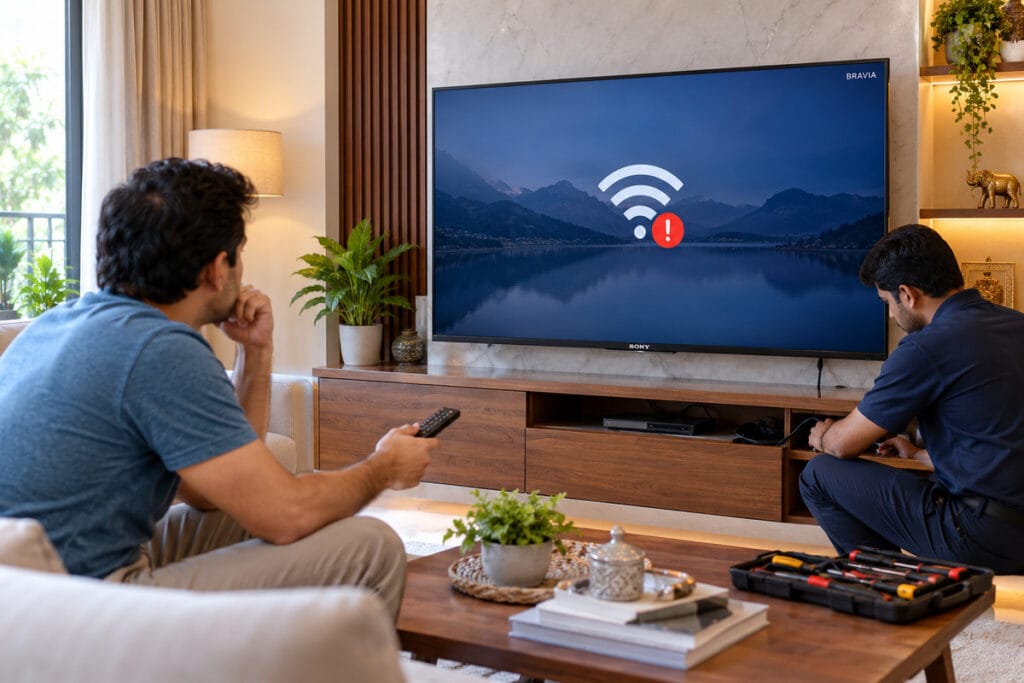
Your Sony Android TV was connected to WiFi yesterday, but today it may be showing “Unable to connect”, refusing to connect to your home network, or not showing the network in the WiFi list at all.
WiFi problems on a Sony Android TV can have several causes. The issue may come from the TV’s saved network settings, router configuration, weak signal, software, internet connection or, in some cases, the TV’s internal wireless hardware.
The good news is that a WiFi problem does not automatically mean that the TV needs a hardware repair. You can safely perform several basic checks at home before arranging a technician visit.
Since 2017, Wisdom Electronics & Computers has handled Sony TV software and hardware issues across Pune, PCMC, Wakad, Baner and Hinjewadi. Before founding Wisdom Electronics, our founder spent 17 years working at a Sony Authorised Service Centre.
This guide explains why a Sony Android TV may not connect to WiFi, what you can safely check yourself, and when the problem may need proper TV diagnosis.
Quick Answer
A Sony Android TV that is not connecting to WiFi may be affected by a temporary software problem, incorrect saved network information, router settings, weak WiFi signal, outdated software, DNS or IP configuration, or a problem with the TV’s wireless hardware.
Start with the simple checks first. Restart the TV and router, check that WiFi is enabled on the TV, forget the saved network and reconnect, and test whether other devices can access the same WiFi.
If the TV shows no available WiFi networks, the WiFi option is unavailable, or WiFi continues to fail while a wired LAN connection works normally, the TV may need further diagnosis.
- Why Won’t My Sony Android TV Connect to WiFi?
- Sony Android TV WiFi Problems — First Steps to Try
- Sony Android TV Not Finding WiFi Network
- Sony Android TV Connected to WiFi But No Internet
- Sony Android TV WiFi Hardware Fault — When to Call a Technician
- Sony Bravia TV WiFi Not Connecting — What NOT To Do
- Sony Android TV Models That May Experience WiFi Problems
- Real Repair Examples from Pune & Pimpri-Chinchwad
- Sony Android TV WiFi Repair Charges in Pune & Pimpri-Chinchwad
- Why Pune Families Trust Wisdom Electronics for Sony TV Repair
- Frequently Asked Questions
Why Won’t My Sony Android TV Connect to WiFi?
There are two broad categories of causes — software or network settings and hardware-related faults.
Software and network causes can include:
- Temporary software glitch on the TV
- Incorrect WiFi password or saved network information
- WiFi being disabled on the TV
- Router connection or configuration problem
- IP address or DNS configuration issue
- Outdated Sony TV software
- WiFi frequency or router compatibility issue
- Weak wireless signal
- Router access-control or MAC-filtering settings
- VPN or proxy configuration, where supported
- Internet service problem from the broadband provider
- Incorrect date and time affecting some online services
Hardware-related causes can include:
- Fault in the TV’s wireless networking hardware
- Damaged or faulty internal antenna, depending on the model
- Main board fault affecting network functions
Before assuming that the TV needs a hardware repair, it is better to rule out the router, internet connection and basic TV network settings first.
It is also useful to identify exactly what is happening:
1. The TV cannot see your WiFi network:
The issue may involve the router’s WiFi band, signal, compatibility, access-control settings or the TV’s wireless hardware.
2. The TV sees the network but cannot connect:
Incorrect password, saved network information, security settings, or IP/network configuration may be involved.
3. The TV connects to WiFi but has no internet:
The TV may be communicating with the router correctly while the router, DNS, date/time or internet service is preventing access to online services.
This distinction can make troubleshooting much easier.
Sony Android TV WiFi Problems — First Steps to Try
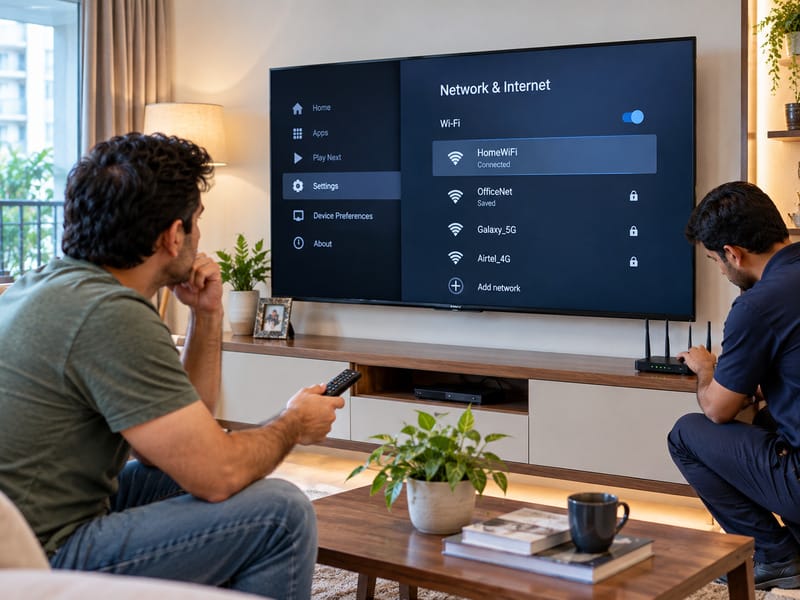
Fix 1 — Restart the TV and Router
Restarting both devices is one of the simplest troubleshooting steps and can clear temporary communication problems between the TV and router.
Steps:
- Switch off your Sony Android TV.
- Unplug the TV from the wall socket.
- Turn off the router and unplug it.
- Wait for around 60 seconds.
- Plug the router back in first and wait until its connection lights become stable.
- Reconnect the TV to power and turn it on
- Open the TV’s network settings and look for the WiFi option. The exact menu path can vary between Sony models and Android/Google TV versions.
- Try connecting to your home network again.
A restart may restore the connection if a temporary network or software issue caused the problem.
Fix 2 — Remove the Saved WiFi Network
If the TV has saved incorrect or outdated network information, removing the saved WiFi connection and setting it up again can help.
Steps:
- Open the TV’s network settings.
- Select WiFi.
- Select your home network.
- Choose Forget or Remove, depending on your TV model.
- Search for available networks again.
- Select your home WiFi.
- Enter the password carefully.
WiFi passwords are case-sensitive, so check capital letters, numbers and special characters before trying again.
If the TV does not show a Forget option, the available network-management options may be different on that model.
Fix 3 — Check the WiFi Frequency Band
Many modern routers broadcast on both 2.4GHz and 5GHz WiFi bands. Compatibility depends on the TV model, region, router configuration and supported WiFi standards.
Some older Sony TVs may have more limited 5GHz support, while newer models can support additional WiFi bands and standards.
If your TV cannot connect to the 5GHz network, trying the 2.4GHz network can be a useful compatibility and range test.
Steps:
- Open your router’s settings or mobile app.
- Check whether the 2.4GHz and 5GHz networks are enabled.
- If your router uses one combined network name, you can temporarily separate the two bands if the router allows it.
- Connect the Sony Android TV to the 2.4GHz network.
- Test the connection.
The 2.4GHz band generally travels farther through walls than 5GHz, so it can also help when the TV is located far from the router.
Do not assume that every Sony TV supports every WiFi band. If you are unsure, check the specifications or support information for your exact model.
Fix 4 — Check IP and DNS Settings
A network configuration problem can sometimes prevent the Sony Android TV from getting a proper internet connection.
Before changing advanced settings, leave the TV’s IP configuration on Automatic/DHCP and test the connection again.
DHCP allows the router to assign the TV the network information it needs. This is normally the safer option for a typical home network.
If you have a specific network configuration problem and understand your router’s IP range, manual settings may be used.
Do not enter a fixed IP address such as 192.168.1.200 unless you know that it belongs to your router’s network and is not already being used by another device.
A manual IP configuration also needs the correct:
- IP address
- Subnet mask
- Gateway/router address
- DNS server
These values need to match the network being used. Entering only an IP address, or entering values from a different network, can prevent the TV from communicating properly.
For DNS troubleshooting, you can optionally test a public DNS service such as:
DNS 1: 8.8.8.8
DNS 2: 8.8.4.4
Manual DNS should be treated as a troubleshooting test rather than a standard setting that every Sony TV needs.
If automatic DNS is working normally, there is usually no reason to change it.
The availability and location of IP/DNS settings can vary between Sony TV models and Android/Google TV versions.
Fix 5 — Check for Sony TV Software Updates
Outdated TV software can sometimes contribute to network instability or connectivity problems.
If the TV cannot connect through WiFi but you have a working LAN connection, you can temporarily connect the TV to your router using an Ethernet cable, provided your TV has a compatible Ethernet/LAN port.
Steps:
- Connect the TV to the router using a LAN cable.
- Open the TV’s software update section.
- Check for an available system software update.
- Allow the update to complete.
- Restart the TV.
- Disconnect the LAN cable and test WiFi again.
Menu names can differ depending on the Sony model and software version.
A software update may help when the problem is related to software, but it will not repair a physically faulty WiFi component.
Fix 6 — Check Network and App Settings
Some Sony Android and Google TV versions provide additional network or application settings, but the available options are not identical on every model.
Before changing or clearing system applications, check the instructions for your exact TV model.
If a model-specific Sony procedure recommends clearing a particular application’s cache, follow that procedure carefully. Avoid deleting system-app data simply because a generic troubleshooting guide suggests doing so.
There is no single network-related cache or system-app procedure that applies safely to every Sony Android or Google TV.
If you are unsure which application or setting is responsible, it is safer to leave system data unchanged and continue with the standard network checks.
Fix 7 — Run Network Diagnosis
Before moving to more advanced settings, use the network diagnosis or network status option available on your Sony TV, if your model provides one.
Depending on the TV model and software version, network information or diagnosis may appear under areas such as Network, Network Status, Help or related settings.
The exact menu path is not universal across Sony televisions. Some models and series may not provide the same network-diagnosis feature.
Network diagnosis can help identify whether the problem is between:
- The TV and WiFi router
- The router and internet connection
- The TV’s network configuration
If your model does not provide a network-diagnosis option, that does not by itself indicate a hardware fault.
Fix 8 — Factory Reset the Sony Android TV
If basic troubleshooting does not resolve the problem and the issue appears to be software-related, a factory reset can restore the TV’s system and network settings to their default state.
Steps:
- Open the TV’s Settings.
- Look for Device Preferences, System, or the reset option available on your model.
- Select Factory Data Reset.
- Confirm the reset.
- Allow the TV to restart.
- Set up the TV again and connect it to WiFi.
Important: A factory reset removes saved accounts, apps, network information and personal settings. Make sure you are prepared to set the TV up again before using this option.
A factory reset can help with certain software or configuration problems, but it cannot repair a damaged WiFi component, antenna or main board.
Sony Android TV Not Finding WiFi Network
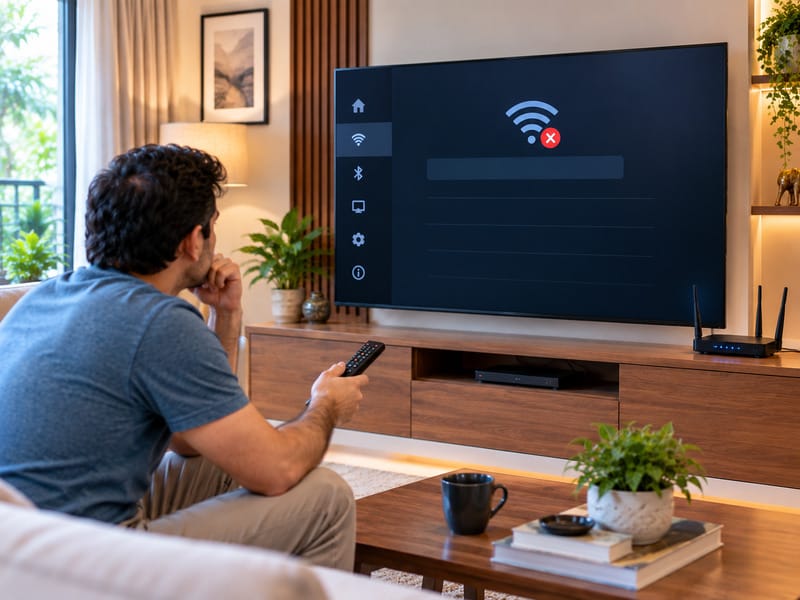
If your Sony Android TV cannot even see your home WiFi network in the available network list, the issue may be different from a normal password or internet connection problem.
Possible causes include:
- 2.4GHz or 5GHz network configuration problem
- Router channel or compatibility issue
- Weak signal from the router
- Router security or access-control settings
- Hidden WiFi network/SSID configuration
- TV network software problem
- Fault affecting the TV’s wireless networking hardware
- WiFi being disabled on the TV
Fixes to try:
Check whether WiFi is enabled
Depending on the model, look in the TV’s network settings for the WiFi or Built-in WiFi option and make sure it is enabled.
The wording and location of this option can differ between Sony Android and Google TV models.
Check the 2.4GHz network
Check that the router has 2.4GHz WiFi switched on.
If 5GHz is missing, try connecting through 2.4GHz. This can help identify whether the issue is related to frequency-band compatibility or range.
Check router access-control settings.
Some routers have access-control, MAC-filtering or device-management features that can prevent a new device from connecting.
These are router-side settings, not features that every Sony TV will have.
If such a feature is enabled, check whether your Sony TV has been blocked.
Check a hidden WiFi network
Some routers can hide the network name, also known as the SSID.
If your home WiFi is configured as a hidden network, the connection process may be different depending on the Sony TV model.
If the TV does not automatically display the network, check the model-specific network instructions for adding or connecting to a hidden network.
Check the WiFi signal.
If the TV is far from the router or there are several walls between them, the signal may be too weak.
Try temporarily moving the router closer to the TV, or test the TV from a location with a stronger WiFi signal.
Test another device
Test the same network on your phone or laptop.
If other devices also cannot connect, the problem may be with the router or broadband service.
If other devices connect normally but the Sony TV cannot detect any available networks, further TV-specific troubleshooting may be required.
Sony Android TV Connected to WiFi But No Internet
Sometimes the Sony Android TV successfully connects to the WiFi router, but apps such as YouTube, Netflix or Google Play do not work.
This is different from the TV being unable to connect to the WiFi network.
In this situation, the TV may be communicating with the router correctly while the router or internet service is unable to provide a working internet connection to the TV.
Common causes include:
- Internet outage from the ISP
- Incorrect DNS settings
- Incorrect date and time
- VPN or proxy settings, where supported
- Router configuration problem
- Temporary TV software issue
- Google service or app connection problem
Fixes to try:
Check internet on other devices
Connect your phone or laptop to the same WiFi.
If those devices also have no internet, check your broadband connection or contact your internet service provider.
If other devices work normally but the TV does not, continue with the TV-specific checks.
Check DNS settings
If other devices have internet but the Sony TV does not, you can test the TV’s DNS settings.
Depending on your model, go to the network settings and look for the IP or DNS configuration.
If manual DNS configuration is available, a public DNS such as:
8.8.8.8
can be tested.
Automatic DNS should normally be left enabled unless there is a specific reason to test a manual DNS server.
Check date and time
Incorrect date or time settings can sometimes interfere with secure connections to online services.
Open Date & Time and turn on automatic time, if your model offers it.
The exact setting name can vary by model and software version.
Disable VPN or proxy settings
If a VPN application or proxy configuration is active on the TV, temporarily disable it and test the internet connection again.
These options are not available or configured in the same way on every Sony TV, so treat this as an advanced, model-dependent check.
Sony Android TV WiFi Hardware Fault — When to Call a Technician
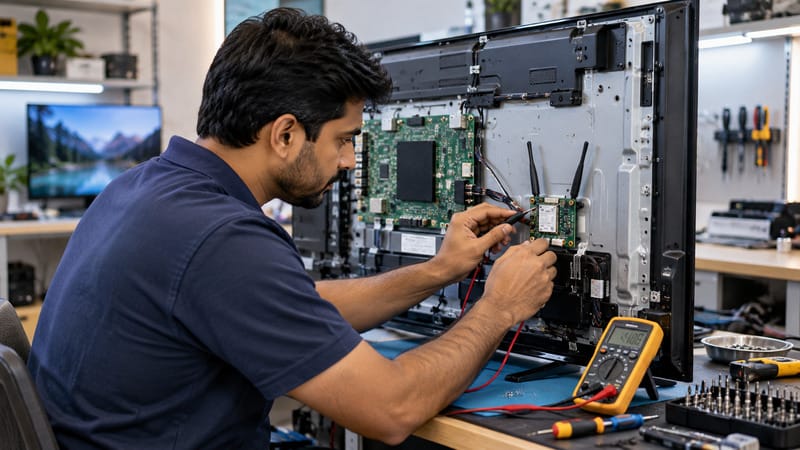
If the usual software and network troubleshooting steps do not resolve the problem, the TV may have a hardware-related wireless fault.
Signs that professional diagnosis may be needed:
- TV cannot detect any WiFi networks at all
- WiFi option is unavailable or greyed out
- WiFi suddenly stopped working while other devices still connect normally
- Factory reset does not resolve the problem
- LAN connection works, but WiFi continues to fail
- WiFi repeatedly disconnects despite normal router operation
Depending on the Sony model, manufacturers integrate or connect the wireless hardware directly to the main board.
A technician should diagnose the TV before deciding whether the wireless module, antenna, main board or another component needs attention.
Do not try to replace internal WiFi components yourself. Opening a television without the correct tools and experience can damage delicate components and create an electrical safety risk.
Do not automatically treat a WiFi failure as a main-board fault.
Sony Bravia TV WiFi Not Connecting — What NOT To Do
Do not repeatedly enter the WiFi password without checking it
A wrong-password message can simply be caused by an incorrectly entered password.
Check capital letters, numbers and special characters before trying other troubleshooting steps.
Do not reset the router immediately.
Check whether another device can join the same network.
If other devices are working normally, resetting the router may be unnecessary and could disconnect all your devices.
Do not assume that the TV needs hardware repair immediately
Many connectivity problems are caused by network settings, router conditions or temporary software issues.
Complete the basic checks before looking at a hardware fault.
Do not change advanced IP settings randomly.
Entering an incorrect static IP, gateway, or subnet can create another network problem.
If you are unsure about your router’s network configuration, leave IP settings on Automatic/DHCP and seek model-specific guidance before making manual changes.
Do not leave a persistent WiFi problem unchecked.
If the TV cannot connect to the internet, you may lose access to streaming services, software updates and other connected-TV features.
If the problem remains, diagnosis can help pinpoint whether it is network-, software- or hardware-related.
Sony Android TV Models That May Experience WiFi Problems
WiFi problems can occur across different generations of Sony Android and Google TVs, but the exact cause, supported WiFi bands, and available menu options vary by model, region and software version.
The following are examples of Sony TV models and model families where different network configurations may be encountered. Their inclusion here does not mean that these models have a known or inherent WiFi defect.
Examples include:
Sony Bravia X75K, X80K and X90K — these models use different software and network configurations, so troubleshooting options can vary by software version.
Sony Bravia W660G and W830C — older models may have different network capabilities and may require attention to WiFi frequency, router configuration or compatibility.
Older Sony Android TV models — network problems may be related to software, router compatibility or hardware condition depending on the individual TV.
Sony Bravia 4K HDR Android TV models — DNS, IP configuration and router-related issues can affect internet connectivity.
Sony Google TV models — available network settings and troubleshooting menus can differ from earlier Android TV generations.
The steps can vary with the TV model and software version.
Real Repair Examples from Pune & Pimpri-Chinchwad
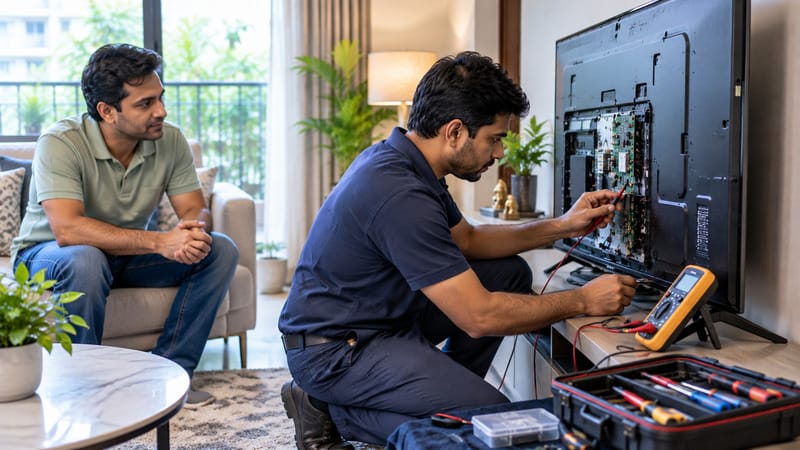
Case 1 — Sony Android TV Not Finding WiFi, Wakad
A customer in Wakad reported that their Sony Bravia X80K could not find any WiFi networks after a firmware update. The problem remained after a factory reset.
Diagnosis found a fault with the TV’s internal WiFi hardware. Our technician replaced the faulty WiFi module, restoring the TV’s connection.
Repair cost: ₹2,200
Case 2 — Sony TV Connected But No Internet, Chinchwad
A Sony Android TV in Chinchwad showed “Connected” to WiFi, but its apps were not working.
Diagnosis found incorrect DNS settings. After correcting the network configuration, the internet connection started working normally.
Cost: ₹0 — resolved during diagnosis
Case 3 — Sony TV WiFi Keeps Disconnecting, Hinjewadi
A customer in Hinjewadi reported that their Sony Android TV was disconnecting from WiFi every 30–60 minutes.
After checking the network configuration and updating the relevant settings, the connection became stable.
Software service charge: ₹500
These examples show why checking the actual fault matters. A TV with a WiFi problem may need nothing more than network configuration, while another TV with similar symptoms may have a hardware fault.
Sony Android TV WiFi Repair Charges in Pune & Pimpri-Chinchwad
| Problem | Estimated Cost | Repair Time |
| Software fix (DNS, IP, settings) | ₹0–₹500 | 10–30 minutes |
| Firmware update service | ₹500–₹1,000 | 30–60 minutes |
| Factory reset service | ₹500–₹1,000 | 30–60 minutes |
| WiFi module replacement | ₹1,500–₹3,500 | 1–3 hours |
| Main board repair (WiFi fault) | ₹3,500–₹8,000 | 2–5 hours |
Pricing varies by model, fault and parts. We provide the final estimate after completing an on-site diagnosis in Pune or Pimpri-Chinchwad.
Areas We Serve
Our Sony Android TV WiFi service covers Kalewadi, Wakad, Pimple Saudagar, Chinchwad, Akurdi, Nigdi, Moshi, Chikhali, Ravet, Baner, Hinjewadi, Aundh, Pimple Nilakh, Sangvi, Bhosari and nearby PCMC areas.
Doorstep Sony TV service is also available across Pune.
Why Pune Families Trust Wisdom Electronics for Sony TV Repair
- 17 years of experience at a Sony Authorized Service Centre.
- Practical experience with Sony TV software and hardware faults.
- 1,000+ Sony TVs repaired since 2017
- Free doorstep fault assessment before repair charges.
- Model-specific high-quality replacement parts chosen for the required repair.
- Same-day service across Pimpri-Chinchwad and Pune
- 1-year warranty on parts and labour
- A straightforward assessment of repair feasibility
Should You Repair or Replace Your Sony Android TV?
The right choice depends on the TV’s age, overall condition, fault and estimated repair cost.
Repair may make sense when:
- Only the Wi-Fi-related hardware has failed
- The TV is otherwise working normally
- The display and other major functions are in good condition
- Repair may make sense when its cost is suitable compared with a replacement TV.
Replacement may be worth considering when:
- Multiple major components have failed
- The TV is considerably older
- The main board has a major fault affecting several functions
- The repair cost is high compared with the TV’s age and current replacement options
A proper diagnosis is useful before making a repair-or-replace decision.
Frequently Asked Questions
Common causes include a temporary software problem, incorrect saved network settings, router issues, weak WiFi signal, outdated software or DNS/network configuration problems. Start by checking that WiFi is enabled, then restart both the TV and router and forget and reconnect to the WiFi network.
Restart the TV and router, forget the saved WiFi network and reconnect, check the 2.4GHz and 5GHz network settings, test the connection on another device and check for TV software updates. If the problem continues, use any network-diagnosis option available on your model or arrange professional TV diagnosis
This usually means the TV has connected to the router but is not getting a working internet connection. Check whether other devices have internet access, then check the TV’s DNS, date and time and any active VPN or proxy settings where supported.
Check whether WiFi is enabled on the TV and whether the router’s WiFi bands are enabled. Test the 2.4GHz network, check the router’s access-control settings and make sure the signal is strong enough. If the TV cannot detect any networks even after basic troubleshooting and a factory reset, the TV may require hardware diagnosis.
Software and network-related fixes may cost around ₹0–₹1,000 depending on the work required. WiFi hardware replacement may cost approximately ₹1,500–₹3,500, while a main board repair may cost around ₹3,500–₹8,000. The final cost depends on the Sony model and fault.
Yes. You can still use connected devices through HDMI and, depending on the TV setup, watch content through cable or antenna. Online services such as Netflix, YouTube, Google services and software updates require an internet connection.
A LAN cable can also be used instead of WiFi if the TV has an Ethernet port.
A factory reset can resolve persistent software or network-setting problems by restoring the TV’s system settings to their default state. It does not fix a physical hardware fault. If WiFi still does not work after the reset, further diagnosis may be required.
First, check the WiFi signal, router stability and whether other devices are disconnecting too. Restart the router and TV, forget and reconnect to the network, check for software updates and review the TV’s DNS/network settings. Avoid changing static IP settings unless you know your router’s network configuration.
Repair can be worthwhile when only the WiFi-related hardware has failed, and the TV is otherwise working normally. The decision depends on the TV’s age, overall condition, repair cost and the price of a suitable replacement
Yes. We provide doorstep Sony Android TV repair across Pune and Pimpri-Chinchwad. Software-related network problems can often be checked and resolved during a home visit, while hardware faults may require additional repair work depending on the model.
People Also Ask
Frequent WiFi disconnections can be caused by weak signal strength, router problems, network configuration, software issues or other connectivity problems. Check the router and other connected devices first, then restart the TV and reconnect to the network.
Yes. If your Sony TV has an Ethernet/LAN port, you can connect it directly to your router using a LAN cable. This provides a wired internet connection without relying on the TV’s WiFi connection..
A software update can sometimes be followed by a network configuration or compatibility issue. Restart the TV, check the network settings and test the connection again. If the problem continues, check whether another software update is available or use the TV’s network-diagnosis option if your model provides one.
Conclusion
A Sony Android TV that is not connecting to WiFi can often be fixed without replacing any major component. The problem may be related to saved network settings, the router, WiFi signal strength, software, DNS or IP configuration, or the TV’s internal wireless hardware.
Start with the basic checks first. Make sure WiFi is enabled, restart both the TV and router, forget the saved WiFi network and reconnect it, check the 2.4GHz and 5GHz bands, and test the same internet connection on another device. If your TV has a LAN port, you can also use a wired connection to help determine whether the problem is limited to WiFi.
If the TV cannot detect any WiFi networks, the WiFi option is unavailable, the connection keeps dropping, or WiFi still does not work after the basic troubleshooting steps and factory reset, the TV may need proper diagnosis. A technician can check whether the fault is related to the network configuration, software, wireless hardware, antenna or main board.
Sony Bravia TVs can also develop other display-related problems. If your TV has sound but no picture, you can read our guide on Sony Bravia TV Has Sound But No Picture to understand the common causes and repair options. If you are seeing horizontal or vertical lines on the screen, our guide on Sony Bravia TV Lines on Screen explains the possible causes and repair considerations. For a completely black or blank display, see our guide on Sony Bravia TV Black Screen for further troubleshooting information.
Wisdom Electronics & Computers provides Sony Android TV WiFi diagnosis in Kalewadi, PCMC and Pune. Our technicians assess the actual fault before recommending repair, helping to separate simple network or software problems from TV-side hardware faults.
If your Sony Android TV is still having WiFi problems, call or WhatsApp us at +91 9765536767 for assistance.