
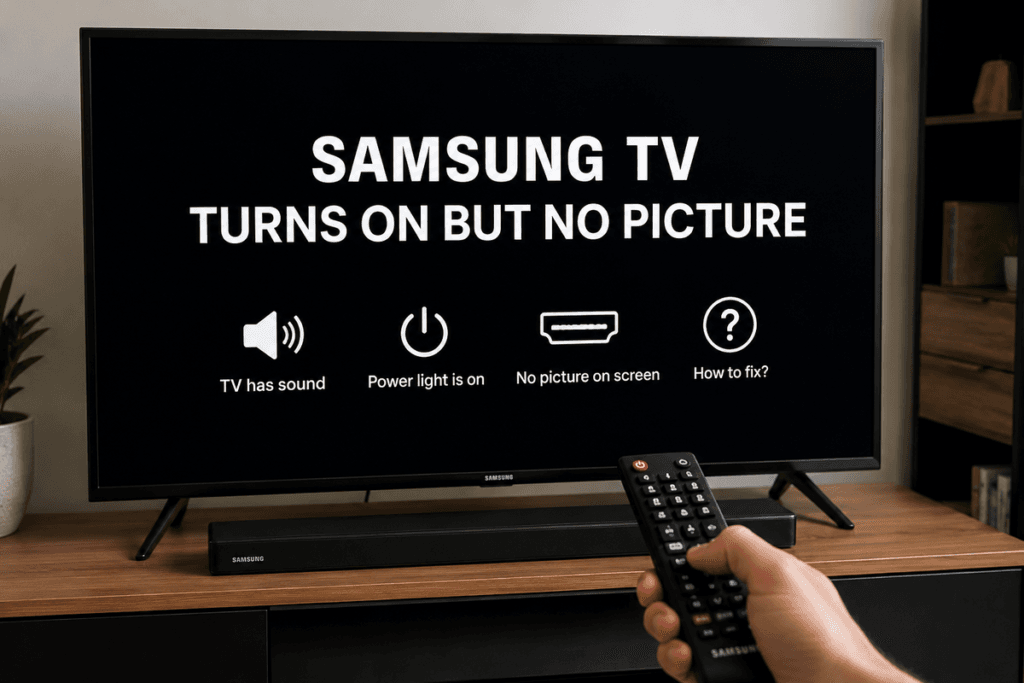
Samsung TV turns on but no picture is a common issue where the TV powers on but the display remains black. This problem can be caused by simple settings or internal hardware faults.
Few things are more frustrating than turning on your Samsung TV only to discover that the screen remains completely black. You may notice the power indicator is on, hear sound coming from your favourite show, or even use the remote successfully, but the display refuses to show anything.
Fortunately, this problem is more common than many people think, and typically, it can be fixed without replacing the television.
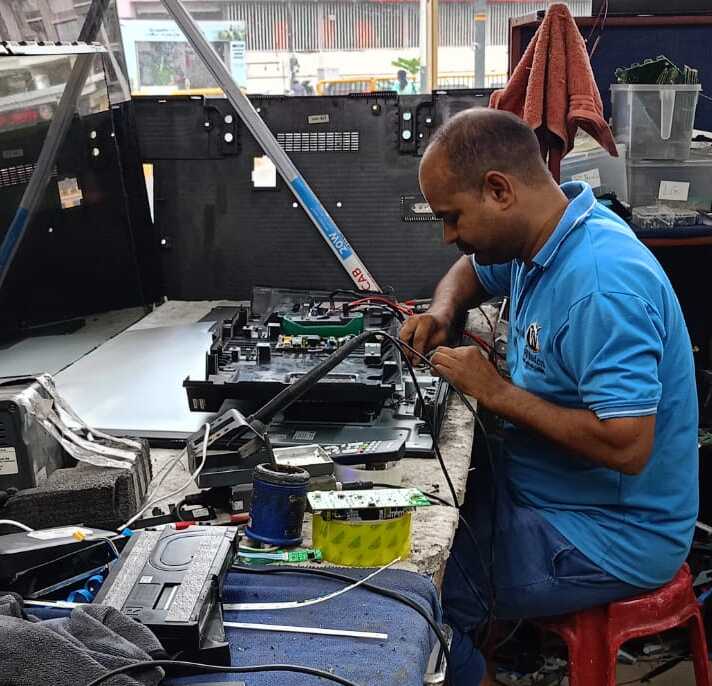
At Wisdom Electronics & Computers, we have been repairing Samsung LED, Smart TV, Crystal UHD, and QLED televisions in Pimpri-Chinchwad and Pune since 2017. Every TV is carefully diagnosed to identify the exact cause before recommending a repair.
Why Choose Wisdom Electronics & Computers?
- Since 2017
- 5,000+ TVs Repaired
- Samsung TV Specialists
- Genuine Spare Parts
- Doorstep Service
- Same-Day Repair
- 1-year Service Warranty
In this detailed guide, you’ll learn why your Samsung TV turns on but has no picture, the most common causes behind the issue, and the step-by-step solutions that can help restore the display.
Whether you own a Samsung LED TV, QLED TV, Crystal UHD TV, OLED TV, or Smart TV, this guide applies to most Samsung television models.
- What Causes a Samsung TV to Turn On But Show No Picture?
- How to Power Cycle Your Samsung TV
- Why Early Diagnosis Matters
- Hardware Problems That Can Cause No Picture
- Can You Fix a Samsung Television Black Screen Yourself?
- When Should You Replace Instead of Repair?
- Samsung TV Turns On But No Picture: Repair Costs, Model-Specific Problems & FAQs
- Should You Repair or Replace Your Samsung TV?
- Frequently Asked Questions:
- Conclusion
Why Does My Samsung TV Turn On But No Picture?
A Samsung TV that powers on but displays no image usually indicates that the television is receiving electricity, but something is preventing the video signal from reaching or being displayed on the screen.
Sometimes the problem is incredibly simple, such as a loose HDMI cable. Other times, the issue could involve the backlight, T-Con board, display panel, power supply, or motherboard.
The good news is that many Samsung TV black screen issues can be solved at home without professional repair.
Common Symptoms
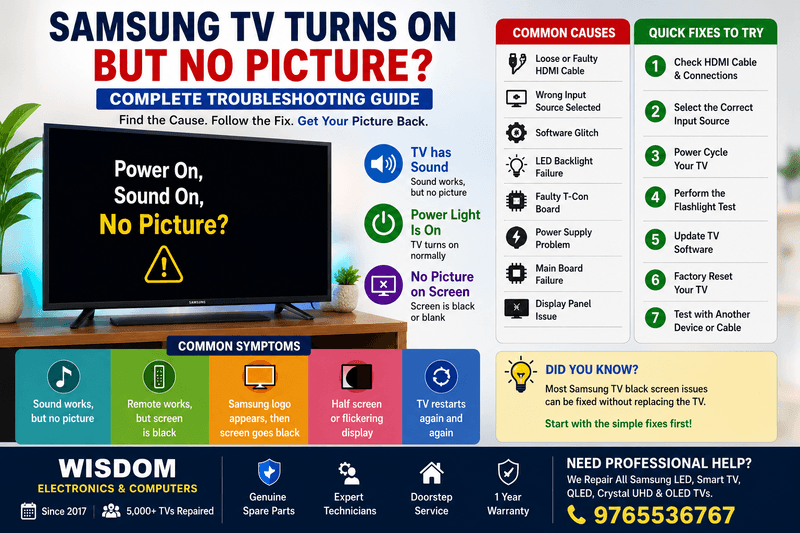
If you’re experiencing any of the following symptoms, this guide is for you.
- TV power light turns on
- Screen stays completely black
- The Samsung logo never appears
- Sound works, but the picture doesn’t
- Remote responds normally
- Menu doesn’t appear
- Only half the screen displays
- TV restarts repeatedly
- Flickering before the screen goes black
- Picture disappears after a few seconds
Each symptom points toward a different possible cause, which we’ll explain in detail.
What Causes a Samsung TV to Turn On But Show No Picture?
There isn’t one universal reason. Several hardware and software problems can lead to a black screen.
1. Loose HDMI Cable
One of the easiest fixes involves checking your HDMI connection.
Over time, HDMI cables can loosen or become damaged, preventing video from displaying while the television remains powered on.
Signs include:
- No picture
- External devices not detected
- Intermittent display
- “No Signal” message
Solution
- Disconnect the HDMI cable.
- Wait 30 seconds.
- Reconnect firmly.
- Try another HDMI port.
- Test another HDMI cable.
2. Wrong Input Source
Many users accidentally switch inputs.
For example:
- HDMI 1
- HDMI 2
- AV
- USB
- TV
- Screen Mirroring
If your cable box is connected to HDMI 2 but your TV is set to HDMI 1, you’ll see a black screen.
Solution
Press the Source button on your Samsung remote and cycle through every available input.
3. Temporary Software Glitch
Smart TVs function much like computers. Occasionally, temporary software bugs can prevent the display from loading properly.
This often occurs after:
- Firmware updates
- Power outages
- App crashes
- Interrupted boot processes
In most cases, these issues are resolved with a simple restart.
How to Power Cycle Your Samsung TV
A power cycle clears temporary system errors without deleting your settings.
Method 1
- Turn off the TV.
- Unplug the power cord.
- Wait for 60 seconds.
- Hold the Power button on the TV for 30 seconds.
- Plug the TV back in.
- Turn it on.
This simple method resolves many display-related issues.
Check the Power Supply
Although the TV powers on, unstable power can still affect internal components.
Inspect the following:
- Loose power cable
- Damaged extension board
- Faulty wall outlet
- Burnt power strip
- Voltage fluctuations
Try plugging the TV directly into a different wall outlet.
Inspect the HDMI Devices
Sometimes the television isn’t at fault.
External devices like gaming consoles, streaming sticks, or cable boxes may fail to send video.
Disconnect all devices, including:
- PlayStation
- Xbox
- Chromecast
- Amazon Fire TV Stick
- Roku
- Apple TV
- Cable Box
- Blu-ray Player
Turn on the TV with nothing connected.
If the Samsung logo appears, reconnect each device one by one to identify the faulty source.
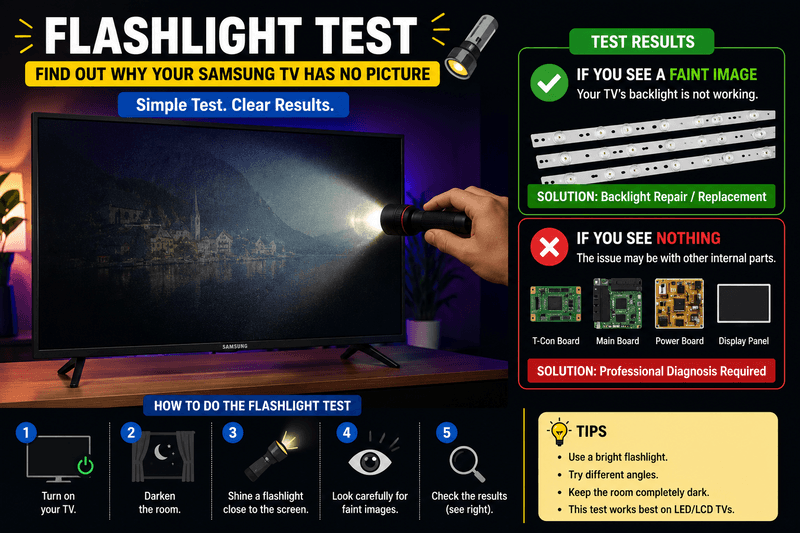
Test with the Flashlight Method
A quick flashlight test can help you determine whether the issue is related to the TV’s backlight or another internal component.
Steps
- Turn on the TV.
- Darken the room.
- Shine a flashlight close to the screen.
- Look carefully for faint images.
Results
If you can see faint pictures:
Your TV’s LCD panel is working, but the backlight has likely failed.
If you see absolutely nothing:
The issue may involve:
- Display panel
- T-Con board
- Main board
- Internal ribbon cables
This simple test helps narrow down the root cause before spending money on repairs.
Signs of a Backlight Failure
Backlight failure is one of the most common hardware issues in Samsung LED TVs
Common symptoms include:
- Black screen
- Audio still works
- Flashlight reveals images
- Screen briefly lights up before going dark
- TV powers on normally
A failed LED backlight usually requires replacing the LED strips inside the television.
Many Samsung TV owners in Pune and nearby areas discover that a simple LED backlight replacement can restore the picture without replacing the entire TV.
Quick Troubleshooting Checklist
Before assuming a serious hardware problem, complete this checklist:
- Restart the TV
- Power cycle the TV
- Check HDMI cables
- Try another HDMI port
- Test another HDMI cable
- Remove external devices
- Select the correct input
- Plug directly into the wall
Many users solve the issue using one of these simple steps without professional assistance.
Why Early Diagnosis Matters
Ignoring a Samsung TV black screen can sometimes worsen the problem. For example, a failing power board may continue stressing other internal components, eventually leading to more expensive repairs.
By identifying the symptoms early and following a systematic troubleshooting process, you can often prevent further damage and determine whether the issue is a simple fix or requires professional service.
In the next part of this guide, we’ll cover advanced troubleshooting methods, including factory reset procedures, backlight testing, T-Con board issues, motherboard failures, software updates, repair costs, and when replacing your Samsung TV is the better option.
Samsung TV Turns On But No Picture (Part 2): Advanced Troubleshooting and Hardware Fixes
Advanced Troubleshooting Methods to Fix a Samsung TV Black Screen
If the basic troubleshooting steps didn’t restore the display, don’t panic. The problem may involve software settings or internal hardware components. Before spending money on repairs or replacing your television, work through the advanced solutions below.
Many Samsung TV display issues can still be resolved at home with the right approach.
1. Perform a Soft Reset
A soft reset clears temporary glitches without deleting your personal settings or installed apps.
How to Soft Reset a Samsung TV
- Turn on your TV.
- Press and hold the Power button on the remote for about 10–15 seconds.
- Wait until the TV restarts automatically.
- Check whether the picture returns.
If the screen is still black, move to the next step.
2. Reset the Picture Settings
Sometimes incorrect display settings can make it appear as though the screen has failed.
Common settings that may cause display issues include:
- Brightness set too low
- Contrast reduced
- Picture mode errors
- Energy-saving mode
- Screen dimming options
If you can access the menu using another display or intermittent picture, restore the picture settings to their default values.
3. Disable Energy Saving Mode
Samsung TVs include several power-saving features that reduce screen brightness. In rare situations, these settings can contribute to display problems.
Check features such as:
- Energy Saving Mode
- Eco Sensor
- Motion Lighting
- Adaptive Brightness
Turning these features off can sometimes restore normal picture quality.
4. Update the TV Firmware
Outdated firmware can cause software bugs, screen glitches, and compatibility issues with external devices.
If your TV still responds to the remote or SmartThings app, check for the latest software update.
Benefits of updating firmware include:
- Improved system stability
- Better HDMI compatibility
- Bug fixes
- Performance improvements
- Security updates
Keeping your television updated helps prevent recurring software-related display problems.
5. Factory Reset the Samsung TV
A factory reset removes corrupted settings that may prevent the display from functioning correctly.
Important: A factory reset erases saved Wi-Fi networks, installed apps, and customised settings.
Factory Reset Steps
- Open Settings.
- Select General.
- Choose Reset.
- Enter your PIN if prompted.
- Confirm the reset.
- Wait for the TV to restart.
After the setup is complete, check whether the picture has returned.
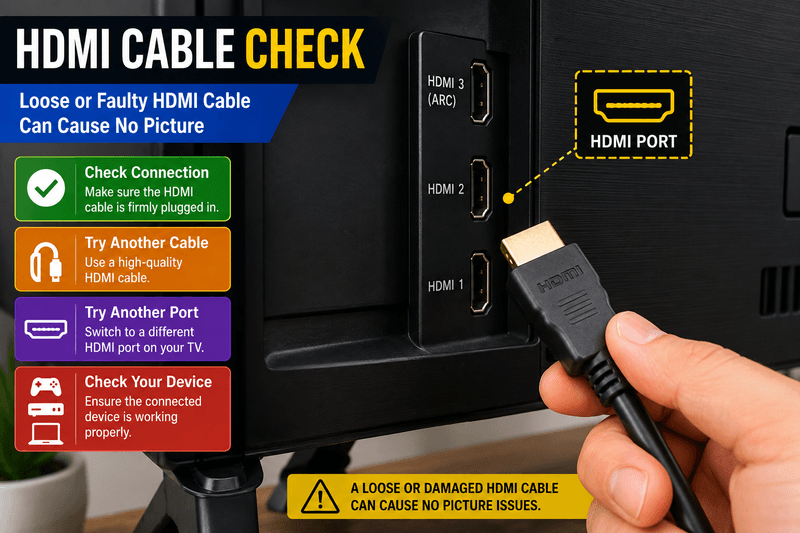
6. Test Every HDMI Port
Sometimes only one HDMI port has failed.
Test each available port by connecting a working device such as:
- Gaming console
- Streaming stick
- Laptop
- Blu-ray player
If one HDMI port works while another doesn’t, the problem may be limited to the damaged input rather than the television itself.
7. Disconnect All External Devices
Connected devices occasionally cause signal conflicts.
Disconnect everything, including:
- HDMI devices
- USB drives
- Soundbars
- AV receivers
- External hard drives
- Gaming consoles
Restart the TV with no accessories attached.
If the display returns, reconnect devices one at a time until you identify the source of the problem.
Hardware Problems That Can Cause No Picture
If software fixes don’t work, one or more internal components may have failed.
Understanding these parts can help you decide whether repair is worthwhile.
Faulty LED Backlight
The LED backlight illuminates the LCD panel. Without it, the screen remains dark even though the TV continues working.
Symptoms
- Black screen
- Audio works normally
- Flashlight test shows a faint image
- TV powers on
- Remote functions correctly
Backlight failure is especially common in older LED televisions after years of use.
Defective T-Con Board
The Timing Control (T-Con) board controls image signals between the main board and the display panel.
When it fails, the television may show:
- Completely black screen
- White screen
- Vertical lines
- Horizontal lines
- Half-screen image
- Flickering display
Replacing a faulty T-Con board is often less expensive than replacing the entire TV.
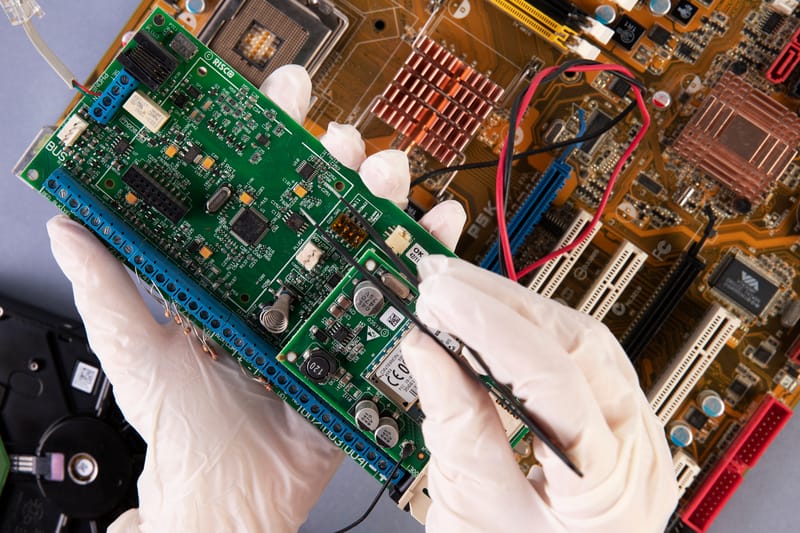
Main Board Failure
The main board controls most of the TV’s essential functions, including video processing, inputs, and smart features
It processes:
- Video signals
- Audio signals
- Smart TV functions
- HDMI inputs
- Software operations
Signs of a failing main board include:
- No display
- Random restarting
- HDMI ports not working
- Frozen startup logo
- Apps crashing repeatedly
For customers across Pune, Pimpri-Chinchwad, Baner, and surrounding areas, a professional inspection can quickly identify whether the fault lies in the backlight, T-Con board, power supply, or main board.
Power Supply Board Issues
Although the television powers on, the power board may not deliver sufficient voltage to the display components.
Common symptoms include:
- Screen flashes briefly
- TV clicks repeatedly
- Random shutdowns
- Black screen after startup
Depending on the cause, power board failures are repairable.
Damaged LCD or OLED Panel
A damaged display panel is one of the most expensive television repairs.
Possible causes include:
- Physical impact
- Pressure damage
- Manufacturing defects
- Liquid damage
- Internal panel failure
Symptoms include:
- Cracked screen
- Colored lines
- Ink-like spots
- Half display
- No image at all
If the panel itself is damaged, replacement often costs nearly as much as buying a new television.
Loose Internal Ribbon Cables
Inside every Samsung Smart TV are delicate ribbon cables that connect major components.
Over time, they may become:
- Loose
- Damaged
- Oxidized
- Partially disconnected
A loose ribbon cable can cause:
- Blank screen
- Flickering
- Colored lines
- Half-screen picture
Inspecting these cables should only be attempted if you’re comfortable opening electronic devices and the TV is unplugged.
Can You Fix a Samsung Television Black Screen Yourself?
The answer depends on the underlying cause.
DIY-Friendly Fixes
- Restarting the TV
- Power cycling
- Changing HDMI cables
- Switching input sources
- Factory reset
- Checking wall outlets
- Disconnecting accessories
These solutions require no technical expertise.
Repairs Best Left to Professionals
- Backlight replacement
- T-Con board replacement
- Power board repair
- Main board replacement
- Panel replacement
- Internal soldering work
Opening the TV without the right equipment or technical knowledge may lead to further damage and higher repair costs.
Before deciding to replace your Samsung TV, it’s worth getting a professional diagnosis. Many televisions in Pune and Pimpri-Chinchwad can be repaired at a much lower cost than purchasing a new one.
When Should You Replace Instead of Repair?
Repairing a television isn’t always the most cost-effective option.
Replacement may be the better choice if:
- The display panel has failed.
- Repair costs exceed half the price of a new TV.
- The television is more than 7–10 years old.
- Multiple internal components are damaged.
- Replacement parts are unavailable.
For newer Samsung Smart TVs, repairing a failed backlight or power board is often worthwhile.
Prevent Future Samsung LED TV Display Problems
Good maintenance habits can reduce the risk of future display issues.
Here are a few practical tips:
- Use a high-quality surge protector.
- Keep the TV firmware updated.
- Avoid unplugging the TV during software updates.
- Ensure proper ventilation around the television.
- Clean vents regularly to prevent overheating.
- Handle HDMI cables carefully to avoid port damage.
- Keep liquids away from the TV.
- Avoid pressing directly on the screen during cleaning or moving.
Taking these precautions can extend the life of your television and help prevent common display failures.
Troubleshooting Summary
If your Samsung display turns on but shows no picture, follow this order:
- Check the power supply.
- Verify the correct input source.
- Inspect HDMI cables and ports.
- Perform a power cycle.
- Soft reset the TV.
- Disconnect all external devices.
- Update the firmware.
- Factory reset the TV.
- Perform the flashlight test.
- Inspect for hardware failures such as the backlight, T-Con board, or main board.
Working through these steps systematically helps identify the root cause without unnecessary repairs.
Samsung TV Turns On But No Picture: Repair Costs, Model-Specific Problems & FAQs
After trying both basic and advanced troubleshooting methods, you may still find that your Samsung TV turns on, but no picture appears on the screen. At this stage, it’s important to understand whether the issue is repairable, how much it may cost, and when replacing the television is the smarter option.
This section covers repair estimates, common problems in different Samsung LCD TV models, mistakes to avoid, and frequently asked questions that users search for online.
Samsung TV Repair Cost: What Should You Expect?
The cost of repairing the issue depends on which component failed, the screen size, and whether the TV is still under warranty.
Below are approximate repair costs.
| Problem | Estimated Repair Cost |
| HDMI Port Repair | ₹1,500–₹3,500 |
| Power Supply Board Repair | ₹2,000–₹5,000 |
| LED Backlight Replacement | ₹2,500–₹6,500 |
| T-Con Board Replacement | ₹2,500–₹5,500 |
| Main Board Repair/Replacement | ₹3,500–₹8,000 |
| Display Panel Replacement | ₹10,000–₹35,000+ |
Note: These are approximate repair costs. The final repair cost depends on your Samsung TV model, screen size, the exact fault, and spare parts availability. A professional inspection is recommended for an accurate estimate.
If the display panel itself is damaged, purchasing a new TV is often more cost-effective than replacing the screen.
At Wisdom Electronics & Computers, we always inspect the TV before providing a repair estimate, as the final cost depends on the exact fault, screen size, and model.
Samsung QLED TV Models That Commonly Experience Black Screen Issues
Although any television can develop display problems over time, certain Samsung models are more likely to experience issues due to ageing components or heavy usage.
Examples include:
- Samsung Crystal UHD TVs
- Samsung QLED TVs
- Samsung LED TVs
- Samsung Smart TVs
- Samsung Frame TV
- Samsung OLED TV
The troubleshooting steps in this guide apply to most Samsung television models regardless of series.
Why Does My Samsung Crystal UHD TV Have Sound but No Picture?
This is one of the most frequently reported issues.
If you can hear:
- TV channels
- Netflix audio
- YouTube sound
- Menu sounds
- Game audio
But the screen remains black; the most likely causes include:
- Failed LED backlight
- Faulty T-Con board
- Loose display cable
- Display panel issue
- Main board malfunction
Samsung OLED TV Turns On Then Screen Goes Black
Some users report that the Samsung logo appears briefly before the display goes black.
Possible reasons include:
- Overheating
- Failing LED strips
- Software corruption
- Weak power supply
- Internal board failure
If the issue occurs consistently, hardware inspection may be necessary.
Samsung TV Black Screen After Software Update
Occasionally, users notice a display issue immediately after installing a firmware update.
Possible reasons include:
- Incomplete installation
- Software bugs
- Interrupted update process
- Corrupted firmware
Try these steps:
- Restart the TV.
- Perform a power cycle.
- Factory reset the television if accessible.
- Reinstall the firmware if Samsung provides an updated version.
Samsung TV Flickers Before Going Black
A flickering display before going black usually indicates a hardware issue. Learn more in our Samsung TV Screen Flickering guide.
Common causes include:
- Weak LED backlights
- Loose ribbon cables
- Failing power board
- Damaged display panel
Ignoring flickering may allow the problem to worsen over time.
Common Mistakes to Avoid
Many users accidentally make the situation worse while trying to fix their television.
Avoid these mistakes:
- Repeatedly unplugging the TV every few minutes
- Using damaged HDMI cables
- Ignoring overheating warnings
- Opening the TV while it’s plugged in
- Applying pressure to the display panel
- Installing unofficial firmware
- Using incompatible replacement parts
- Skipping simple troubleshooting steps
A systematic approach is always safer and more effective.
Should You Repair or Replace Your Samsung TV?
The answer depends on several factors.
Repair Your TV If:
- Your television is still relatively new; repairing it can be a worthwhile investment.
- Only the backlight has failed.
- The HDMI ports are damaged.
- The power board needs replacement.
- Warranty coverage is still active.
Replace Your TV If:
- The LCD or OLED panel is broken.
- Multiple internal boards have failed.
- When the estimated repair bill approaches the cost of buying a replacement, investing in a new television is often the better choice.
- Replacement parts are difficult to find.
- The TV is very old and lacks modern features.
Comparing repair costs with the price of a new television can help you make a practical decision.
When Should You Contact Samsung Support?
If none of the troubleshooting methods works, it’s time to seek professional assistance.
Contact Samsung support when:
- The TV is under warranty.
- You notice burning smells.
- The screen has physical damage.
- Internal components require replacement.
- The TV repeatedly shuts down.
- There are signs of electrical failure.
- To make the support process smoother, gather these details before reaching out to customer service:
- TV model number
- Serial number
- Purchase date
- Description of the problem
- Troubleshooting steps already performed
Having this information available helps the technician identify the issue more quickly and reduces delay
Frequently Asked Questions:
The most common causes include a faulty backlight, incorrect input source, damaged HDMI cable, software glitches, or internal hardware failure.
Sometimes. If the issue is caused by a temporary software glitch, restarting or power cycling the TV may restore the display. Hardware failures usually require repair.
Yes. A damaged or loose HDMI cable can prevent the TV from receiving a video signal while audio continues to work.
If the repair involves the power board, HDMI ports, or LED backlight, repair is often worthwhile. If the display panel is damaged, replacement is usually the better financial choice.
This often points to a failed backlight, T-Con board, or display panel. Less commonly, a software issue or loose internal cable may be responsible.
With normal use and proper care, many Samsung TVs last between 7 and 10 years. Lifespan varies based on usage, environment, and maintenance.
Yes. Poor ventilation and excessive heat can affect internal components, leading to display issues or automatic shutdowns.
Final Thoughts
A Samsung TV that powers on but displays no picture doesn’t always mean the television has reached the end of its life. In many cases, the problem can be traced to a simple issue such as a loose HDMI cable, incorrect input selection, or a temporary software glitch. More serious problems—like a failed backlight, power supply board, T-Con board, or display panel—require additional diagnosis and, in some cases, professional repair.
By following the troubleshooting steps outlined in this guide, you can identify the cause of the black screen, determine whether the issue is something you can fix yourself, and decide whether repair or replacement is the most practical solution. Regular maintenance, firmware updates, and proper handling can also help reduce the chances of future display problems and extend the lifespan of your Samsung TV.
If you’re in Pune, Pimpri-Chinchwad, Kalewadi, Wakad, Ravet, Nigdi, Hinjewadi, Baner, Pimple Saudagar, or nearby areas and your Samsung TV turns on but shows no picture, Wisdom Electronics & Computers offers professional diagnosis and repair for Samsung LED, Smart TV, Crystal UHD, QLED, and OLED models.
Why Does My Samsung TV Turn On But No Picture?
If your Samsung TV turns on but no picture appears, the issue is usually caused by a loose HDMI cable, incorrect input source, software glitch, failed LED backlight, faulty T-Con board, damaged power supply, or a defective display panel. Start by performing a power cycle, checking HDMI connections, selecting the correct input, and running the flashlight test before considering professional repair.
People Also Ask (PAA)
A black screen with working audio usually indicates a failed LED backlight, a damaged T-Con board, or a display panel issue. Performing a flashlight test can help determine whether the backlight is the problem.
You can perform a soft reset by unplugging the TV for 60 seconds, holding the physical power button for 30 seconds, plugging it back in, and turning it on. If the menu is accessible, a factory reset is another option.
Yes. Sudden voltage spikes or power interruptions can damage the power supply board, main board, or firmware, sometimes causing a black screen. Using a quality surge protector helps reduce this risk.
If you’ve already checked the power source, HDMI connections, input settings, and performed a reset but the screen still shows no picture, an internal hardware component may have failed. Professional diagnosis is recommended.
Only if you have experience repairing electronics. Modern TVs contain sensitive components that can be damaged easily. If you’re unsure, it’s safer to contact an authorized repair technician.
Yes. A malfunctioning streaming device, gaming console, or cable box can stop video from reaching the TV. Disconnect all external devices and reconnect them one at a time to identify the faulty device.
This can happen because of software corruption, overheating, failing LED backlights, or problems with the main board. Restarting the TV may solve temporary software issues, while repeated failures often indicate hardware problems.
Most Samsung televisions have an average lifespan of 7 to 10 years, depending on usage, maintenance, and environmental conditions. Regular software updates and proper ventilation can help extend the life of your TV.
Quick Troubleshooting Checklist
If your Samsung TV turns on but no picture appears, go through this checklist before requesting repairs:
- Confirm the TV has power.
- Restart the television.
- Perform a power cycle.
- Check the HDMI cable.
- Test another HDMI port.
- Select the correct input source.
- Disconnect external devices.
- Update the firmware if possible.
- Reset the TV to factory settings.
- Contact Samsung support if the issue continues.
Completing these steps can save both time and repair costs.
Conclusion
If your Samsung TV turns on but shows no picture, professional diagnosis can help identify the exact fault before replacing expensive components. At Wisdom Electronics & Computers, we provide Samsung TV repair services across Pimpri-Chinchwad and Pune, with transparent diagnosis, doorstep service, and repairs for common issues such as black screens, backlight failure, power supply faults, and motherboard problems.
Need Samsung TV Repair in Pune or Pimpri-Chinchwad?
If your Samsung TV turns on but shows no picture, our experienced technicians can diagnose and repair the issue quickly. Contact Wisdom Electronics & Computers for professional doorstep TV repair using genuine spare parts and reliable service.